Check out what you get with ItemLine.
Wholesale puts your clients, invoices, catalogue and inventory in one system, with HubLine to bring retailers to you and a portal so clients can see their own invoices.
Wholesale
For wholesalers who sell to a roster of business clients and need invoicing, a catalogue and a clear view of who owes what.
14-day free trial. A card is required to start, and you can cancel any time before it ends.
Sound familiar?
Be honest: how many of these sound like your week?
- Do you remember who you invoiced last week, or just hope you did?
- Are you chasing the same three clients for money every month?
- Does a client call to ask what they owe, and you have to go digging?
- Do retailers text you for your price list every time it changes?
- Have you sold something you did not actually have in stock?
- Do you lose track of which clients you have not visited in months?
- Does an invoice take you longer to make than the delivery did?
- Do you re-type the same recurring invoice every month?
Nodded at even one? Wholesale was built for you.
Know every client, bill them fast, and see who owes you.
Jordan sells to a roster of businesses. Each one has its own rhythm, its own order and its own habit of paying late. ItemLine keeps every client, visit and invoice in one place, so nothing slips and nobody has to ask "did we ever bill them?"
A text from a client, 4:10 p.m.
It used to mean digging through email. Now it takes ten seconds.
A profile for every client, and when they are due next
Contact details, address, notes, tags and how often each client should be visited. Filter the list by visit status, unpaid invoices or tags from one slide-out panel, and see at a glance who has gone quiet.
Visits log themselves
Log a visit by hand, or let it happen automatically when you send an invoice to a client. Backdate a visit you log yourself, and the history stays honest.
Professional invoices from your own catalogue
Build an invoice from your items with discounts and tax, export a branded PDF and send it. Drafts hold no inventory, so you can build one slowly without touching your stock. Stock is deducted when the invoice is sent or a payment is recorded.
Get paid, and set up the repeats
Record full or partial payments and the status updates by itself. Put a template on a schedule and ItemLine creates the recurring invoices for you as drafts.
Let clients see their own invoices
Invite a client by email. Clients without ItemLine get a web portal for their invoices, balance and visit history. Clients already on ItemLine see you as a vendor inside their app, with your invoices and visits on your page. They only ever see invoices you have sent.
Returns, expenses and reports
Log goods a client sends back, restock them if it makes sense, and issue a credit. Track what the business spends, and see sales performance across the year.
Everything in Clients and invoicing: 11 features
Client profiles
Contact details, address, notes, tags, and how often each client should be visited. Filter the list by visit status, unpaid invoices or tags from a slide-out panel.
Visit logging
Log visits manually or automatically from route stops and sent invoices. A route stop and an invoice for the same client within 12 hours count as one visit.
Sales invoices
Build invoices from your catalogue with discounts and tax, export a PDF with your branding, and send it.
Your invoice, your look
Choose Classic, Modern, Minimal or Bold, add your logo (round or square, any size), pick an accent color, and set numbering, currency, tax, due date, terms and notes once. Show or hide item barcodes, write the email clients receive, and watch a live preview of your real invoice as you change things.
Drafts that don't touch stock
A draft holds no inventory. Stock is deducted when the invoice is sent or a payment is recorded against it.
Recurring invoices
Set a template on a schedule and ItemLine creates the invoices for you as drafts.
Payments
Record full or partial payments and the invoice status updates automatically.
Client returns and credits
Log goods returned by a client, restock them if appropriate, and issue a credit.
Client portal
Invite a client by email. Clients without ItemLine get a web portal for their invoices, balance and visit history; clients with an ItemLine account see you as a vendor inside their app, with the same invoices and visits.
Expenses
Track general business spending, with paid and unpaid status. Stock purchases and everyday expenses sit in separate sections, each with its own total. Filter by year and month and the Total follows.
Reports
Key figures for the year, a revenue and expenses chart, ranked tables with share bars, profit and loss, invoice aging, inventory and client concentration. Pick the current year or any of the four before it.
Publish a catalogue once. Let retailers order from it forever.
No more price lists to text out, and no more orders hidden in a message thread. Jordan publishes products to HubLine, and retailers on the network browse, enlarge, zoom, add to an order and send it, straight into your incoming queue.
Tuesday, mid-morning
Nobody called. Nobody asked for the price list. The orders just showed up.
A catalogue that looks like you
Add products with up to 10 photos, a full description, a UPC and a category. Categories become the sections buyers browse. Choose what is visible, hide the rest, and drag products into the order you want inside each category.
Bring items in from inventory, keep them in step
Import an item and its name, UPC, sell price, description, photos and category come across. Your cost never does. When the item changes later, press Sync. Going the other way, a product that only lives in the catalogue can be added to your items with one button.
A storefront in your own brand
Your public profile uses your brand colour, logo and banner, with an About section, featured products, hours, delivery areas and a minimum order. A live preview shows exactly what buyers see, and you choose whether prices and UPCs are shown.
Buyers can see products properly
Retailers tap a product to see it large, swipe the photos, read the full description and zoom in. Each product has its own link they can share. On a phone the catalogue shows one product per row, so everything is easy to see.
Orders arrive in a queue, not an inbox
Review orders placed through HubLine, accept or reject them, and convert an accepted order into an invoice. You can also print a catalogue, flyer or weekly ad from the same products with the Catalogue Designer, in your own colours and category headings.
Buy on HubLine too
Browse other suppliers' catalogues and order from them the same way, and message any business on ItemLine, even without a public profile.
Everything in HubLine catalogue: 14 features
Browse live catalogues
Search the network for distributors and browse the catalogues they've published, with the prices and availability they currently show.
Order directly in the app
Build an order from a distributor's catalogue and send it to them. It arrives in their incoming orders queue.
Order history and tracking
Every order you've placed in one list, with its status, so you can follow up or reorder.
Messaging
Chat with suppliers and clients inside the app, including threads tied to a specific order, and send photos and files. If a vendor and a client are both on ItemLine and linked, either side can message the other without needing a public profile.
Message anyone by email
Type the exact email address of any business on ItemLine to message them, even if they have no public profile. A first message to someone outside HubLine arrives as a request they can accept, ignore or block. Blocked senders are told the business can't see their messages.
Publish your catalogue
Publish selected products to HubLine so connected retailers can browse and order them.
Photos, descriptions and categories
Every catalogue product can carry up to 10 photos, a full description, a UPC and a category. Categories become the sections buyers browse.
Tap a product to see it large
Buyers open any product from your public catalogue to see it enlarged, with swipeable photos, the full description and the price. They can tap a photo to zoom in and out, add it to their order, and share a link to that one product. On a phone the catalogue shows one product per row.
Import from inventory, sync on demand
Add an item from your inventory to the catalogue in one step: its name, UPC, sell price, description, photos and category come across (your cost never does). If the item changes later, a Sync button updates the catalogue copy. Your edits to the catalogue copy stay until you press it.
Catalogue to items, in one tap
A product that only exists in the catalogue can be added to your items list with one button. If an item with the same UPC already exists, it is updated from the product instead of duplicated.
Drag products into your order
In the list view, drag products by their handle to set the order inside each category, on a phone or a computer. That is the order buyers see.
Catalogue Designer
Design printable catalogues, flyers and weekly ads from your products, with your own colours, header, layout and category headings. Pick a style, then adjust it. Save a design to reuse it.
Incoming network orders
Review orders placed through HubLine, accept or reject them, and convert an order into an invoice.
Branded storefront profile
A public profile in your own brand colour with your logo and banner, an About section, featured products, hours, delivery and minimum order. A live preview shows exactly what buyers see.
Stock you can trust, and a paper trail you do not have to type.
Jordan needs the numbers to be right: what is on hand, what it cost, what is running low and what was ordered. ItemLine keeps stock honest as invoices go out, orders arrive and returns come back.
Inventory day, the old way
The warehouse count and the invoices never quite agreed. Now they update each other.
Items with photos, costs and counts
Every item shows its photo, cost, price and quantity on hand in one searchable list. Add up to 10 photos per item, and prefill a description once so it appears on every invoice line you add the item to.
Scan to add, scan to find
Use your phone's camera to add or look up an item. The same product written as 12 or 13 digits is matched as one item, so scanning never creates a duplicate.
Low stock and expiry warnings
Set a low-stock level per item, or use the default, and see what is running low on your dashboard and in your Business Health score. Mark items as expiring and they are added to the Expiration Tracker automatically.
Purchase orders and vendor invoices
Create purchase orders that move from draft to placed to received. Photograph a supplier invoice, or every page of a long one, and the items are read in for you to review. Supplier invoices from ItemLine suppliers arrive as expenses on their own.
Price changes and vendor returns
Get flagged when a supplier's price changes. Log goods sent back, scan a barcode to start the return, and track the credit you are owed. See units sold, revenue and a simple projection of when stock will run out.
Everything in Inventory and buying: 15 features
Item catalogue
Products with cost, price, category, tags, barcode, and quantity on hand, plus an internal notes field.
Item photos
Add up to 10 photos to an item from your camera, photo library or files. The first is the main one and shows as a thumbnail in your items list.
Track stock on or off
Keep counts, or just keep a product list. Switching counting off never loses the numbers you already have.
Invoice descriptions
Give an item a description once and it prefills on every invoice line you add it to. You can still edit it per invoice.
Barcode scanning
Use your camera to look up or add items. Tap the picture to focus, and when your camera supports it use the Focus, Light and Flip buttons and a zoom slider. You can also type a barcode number. UPC-A, UPC-E and EAN-13 codes for the same product are matched to each other, and a known item can have 1 added to its stock right from the scan.
Low stock alerts
Set a threshold per item (or use the default) and see what's running low on your dashboard and Business Health score.
Expiration tracking
Say an item expires when you add it, pick the date, and it's logged in the Expiration Tracker automatically. Choose how far ahead you want to be warned.
Vendors and purchase orders
Keep vendor details and create purchase orders that move from draft to placed to received. Every order gets a professional number such as PO-2026-0001 that counts up and starts again each year.
Supplier invoices become expenses
When a supplier on ItemLine sends you an invoice, it appears in your Expenses on its own: filled in, linked to their live invoice, and kept in step if they change it or record a payment.
Vendor invoice scanning
Photograph a supplier invoice and have its line items read into your records. Review before you save; scanning can make mistakes.
Multi-page receipts and invoices
Add every page of a long invoice or receipt from photos, files or a PDF, put them in order, and they are read together as one expense with the pages kept as one PDF.
Log a return by scanning
Scan a product's barcode and add it to a client return or a return to a vendor in one step, with its details filled in when it matches an item.
Price change alerts
Get flagged when a supplier's price on something you buy changes.
Vendor returns and credits
Log goods sent back to a supplier and track the credit you're owed.
Item analytics
Units sold, revenue, and a simple projection of when stock will run out, based on recent sales.
Know how the business is doing before you check a single report.
Jordan opens ItemLine in the morning and sees what matters: one score for how the business is doing, the two or three things pulling it down, and a link next to each one to fix it. No digging, no spreadsheets, no guessing.
Sunday night, one question
You ask in plain words. You get an answer, not a spreadsheet.
A daily Business Health score, with the reasons
A plain-English summary sits at the top of your dashboard with your Business Health score above it. Overdue payments, unpaid expenses, low stock and anything else that needs you show up below as a short Do next list, each with a link straight to the place to act on it. Everything is built from your own real numbers and refreshed daily, so it never goes stale.
Make the dashboard yours
The dashboard is split into pages for the parts of your business. Switch the whole thing between a week, month, quarter or year, and tap the edges of the revenue chart to page back through earlier ones. On a computer, choose how many cards sit in each row and how tall they are, then swap any card for another that fits. Every person on your team gets their own layout, and you can pick your own colors, a background and glass cards.
Tell people about it in a few taps
Pick a product or a promotion, generate a draft post and image, and review it before you publish. Create specials the same way and keep them in one place.
Everything in Insight and marketing: 5 features
Customizable dashboard
A dashboard split into pages for the parts of your business, with a plain-English summary on top. Switch between week, month, quarter and year, tap the edges of the revenue chart to page back through earlier periods, and on a computer rearrange, resize and swap every card. Each person on your team keeps their own layout, and you can hide menu items you never use.
Appearance
Choose light or dark, your accent color and a background, set how round the corners are, pick which shortcuts sit in your phone's bottom bar, add a live moving background (aurora, silk, constellation, lava, fireflies, rain, waves, grid or embers) and turn on glass cards. Live backgrounds stay still for anyone with reduced motion turned on.
Business Health
A daily score and a short list of what's dragging it down, such as overdue visits, unpaid expenses and low stock, each with a link to act on it.
Social posts
Generate a draft post and image for a product or promotion.
Specials
Create and manage promotional specials.
A teammate who answers at 11 p.m.
Jordan has questions all day: how do I do this, what happened with that, who needs a nudge. PulseLine is the assistant built into ItemLine. Ask in plain English and it answers from your own business, so there is no hunting through menus and no waiting for someone to reply.
Sunday night, one question
You ask in plain words. You get an answer, not a spreadsheet.
Ask it the way you would ask a person
Who owes me money right now? Which clients have not ordered in a while? How do I set up a recurring invoice? It knows your business and how ItemLine works, so you get an answer instead of a search page. It is an AI and can make mistakes, so check anything important.
Add things from a list, a file or a photo
Paste a list, upload a spreadsheet or photograph one, and PulseLine lays out what it found as cards with tick boxes. Untick anything wrong and add the rest in one go. Bring in a whole client list from a spreadsheet in one go. Duplicates are flagged before they are added.
You stay in charge
Anything that adds or deletes is shown to you first, so nothing changes until you say so. Chats are private to each person on your team and clear on their own after 30 days.
Fair use, so it stays fast for everyone
Each account has a weekly usage allowance that your whole team shares, and it resets every Monday. PulseLine is included on every paid plan.
Everything in PulseLine: 1 feature
PulseLine assistant
Ask questions about using ItemLine and your business in plain language. It can make mistakes, so verify important decisions.
Every invoice, filed for you.
Until now Jordan downloaded each invoice, renamed it and dragged it into a folder, usually on a Friday afternoon and sometimes never. With Google Drive connected, every invoice you send is saved as a PDF in your own Drive without you touching it.
Friday, 4:58 p.m.
You hit send and go home. The filing is already done.
- 4:58 p.m.Invoice sent to the client.
- 4:58 p.m.The PDF is saved in your Google Drive, in the folder for the year.
- Tax timeYour accountant opens one folder.
Connect once, then forget about it
Sign in with your Google account one time. After that, each invoice you send is saved as a PDF in a folder named ItemLineInvoices, with a folder for each year.
Your Drive, your files
The PDFs live in your own Google Drive, not on our servers. ItemLine only ever touches files it created, and you can disconnect whenever you like.
Delete an invoice, and Drive tidies up
If you delete an invoice in ItemLine, its file moves to your Drive trash, so it is never gone for good until you empty the trash yourself.
Hand your accountant one folder
Because the PDFs sit in your own Drive, you can share the yearly folder the way you share anything else in Google Drive. No more emailing a pile of attachments in March.
Everything in Google Drive: 1 feature
Google Drive backup
Save a PDF of each sent invoice, and the photo or PDF attached to each expense, to your own Google Drive in folders per year. Requires your own Google account.
Invoice once. Your books already know.
If your bookkeeper lives in QuickBooks Online, every invoice used to mean typing it twice: once to bill the client, once for the books. Jordan sends the invoice from ItemLine and it is sent to QuickBooks too, so the books stay current without a second round of entry.
A message from the bookkeeper
The best kind of month-end request is the one you have nothing to do for.
Send it once, and it is in QuickBooks
Connect your QuickBooks Online account and the invoices you send from ItemLine are sent to it as well. You work in one place, your bookkeeper keeps working in theirs.
Void it here, and it is voided there
If you void an invoice in ItemLine, the synced copy in QuickBooks is voided too, so the two never drift apart.
A log that shows what was sent
Open the sync log to see which invoices were sent and when, so you never have to wonder whether something made it across.
Your account, your control
You use your own QuickBooks Online account. Your connection is stored encrypted and you can disconnect at any time.
Everything in QuickBooks: 1 feature
QuickBooks Online sync
Send invoices to your QuickBooks Online account. Requires your own QuickBooks account.
Run your crew without the clipboard.
The shop has a few people, and everyone needs to know when they work, what they can touch and who clocked in. Jordan sets it up once: a tablet by the door for the time clock, a schedule you can fill months ahead, and a permission for each person on each part of the app.
Saturday, opening shift
Everyone knows where they are. Nobody sees what they should not.
- 8:00The team clocks in on the shared device.
- 8:05The cashier sees orders. The stockroom sees items. The books stay private.
- CloseThe hours add up on their own.
A time clock that fits on a shop tablet
Put a tablet at the shop. Each person picks their name and enters their own PIN to clock in, take a break and clock out. If you allow it, people can also clock in from their phone, and a punch from outside the shop network is flagged for a manager to check. There is no location tracking.
Schedules, trades and time off, handled
Set a shift once and repeat it on the days you choose, from a few weeks to a year. An employee can offer a shift to a coworker, the coworker agrees, and a manager approves before anything moves. Time off requests go to the same place.
Hours, overtime and pay, worked out for you
See each person's hours with daily overtime, double time and weekly overtime calculated from the rules you set, and export a pay summary. It is visible to owners and managers only.
Give each person exactly the access they need
For each area of the app, choose whether a teammate can view, add, edit or delete. Teammates can sign in with a PIN on a shared device. Protect your own sign-in with two-factor authentication, and switch between accounts on one device in a tap.
Everything in Team and security: 13 features
Employee directory
Your team members in one list with their role, pay rate and contact details, and who is clocked in right now.
Time clock
Clock in, take breaks and clock out on a shared shop tablet with a personal PIN, or from your own phone. Phone punches away from the shop network are flagged for a manager to check.
Team schedule and repeating shifts
See who works each day. Set a shift once and repeat it on the days you choose for as long as you like, from a few weeks to a year.
Shift trades with approval
An employee offers a shift to a coworker, the coworker agrees, and a manager approves before anything changes.
Time off
Employees request time off and managers approve or decline. Approved time off shows on the team's records.
Timesheets, overtime and pay
Hours per person with daily overtime, double time and weekly overtime worked out for you, and a pay summary you can export. Visible to owners and managers only.
Team permissions
Choose, per area of the app, whether a teammate can view, add, edit or delete.
Staff PIN login
Teammates can sign in with a PIN on a shared device.
Activity log
A chronological record of actions taken in the account.
Push notifications
Alerts on web, iPhone and Android, with each type individually switchable.
Switch between accounts
Keep several accounts signed in on one device and move between them in a tap. It is off by default on the web so a shared computer never keeps your account.
Two-factor authentication
Add a second step when you sign in, with recovery codes.
Multiple businesses
Run more than one business from one login. Your plan includes one; each additional business is billed by its own type, from $9.99 a month.
Your first 15 minutes
No big setup project. Here is the order most people follow, and every step has a short guide inside the app.
Add your business details
Your name and logo appear on every invoice and email.
Add your products
Type them in, scan barcodes, or import a list. Photos are optional and can come over time.
Add your clients
Contact details, address and how often you want to visit each one.
Create and send your first invoice
Pick a client, add lines from your catalogue, and send. Record the payment when it arrives.
Publish a few products on HubLine
Choose what buyers see, set up your storefront, and watch the live preview.
Invite a client to the portal, and add your team
Let a client see their own invoices, and give each teammate the access they need.
Now see it for yourself
Everything above, as real screens from the Wholesale plan. Pick a screen from the list and switch between desktop and phone.
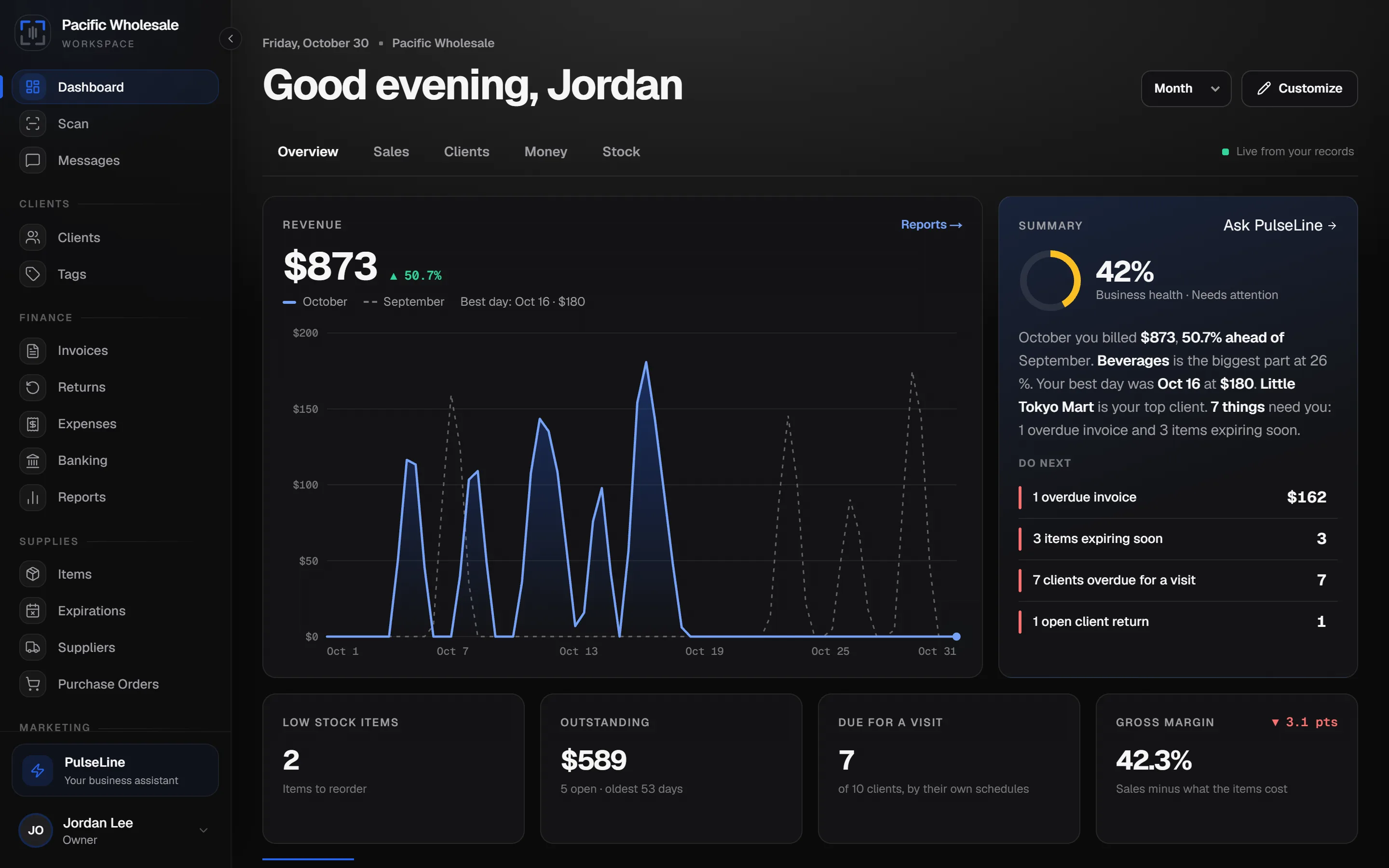
Your business as a report: a revenue chart, a plain-English summary with your Business Health score and what to do next, and the numbers you check most. Switch the period, move between pages and arrange the cards your way.
Screens show demo data and may differ slightly from your account.
Still have questions? Read the FAQ
Try Wholesale free for 14 days.
A card is required to start the trial. Cancel any time before it ends and you won't be charged.
Start free trialJordan is an example business used to show how the plan works day to day. It is not a customer and the scenes are illustrations, not testimonials. Screens show demo data. Features, plan contents and pricing may change; the plan you select at sign-up is governed by our Terms of Service and Refund policy. QuickBooks is a trademark of Intuit Inc. and Google Drive is a trademark of Google LLC; ItemLine is not affiliated with or endorsed by either. Connecting them requires your own accounts. Route distance and time figures are estimates, AI answers can be wrong, and scanned data should always be reviewed before you save it.